Command
git rebase
About
- Changes the snapshot. New commits will replace the old
- In standard mode, it allows you to literally rewrite history — automatically applying commits in your current working branch to the passed branch head
- Process of moving or combining a sequence of commits to a new base commit.
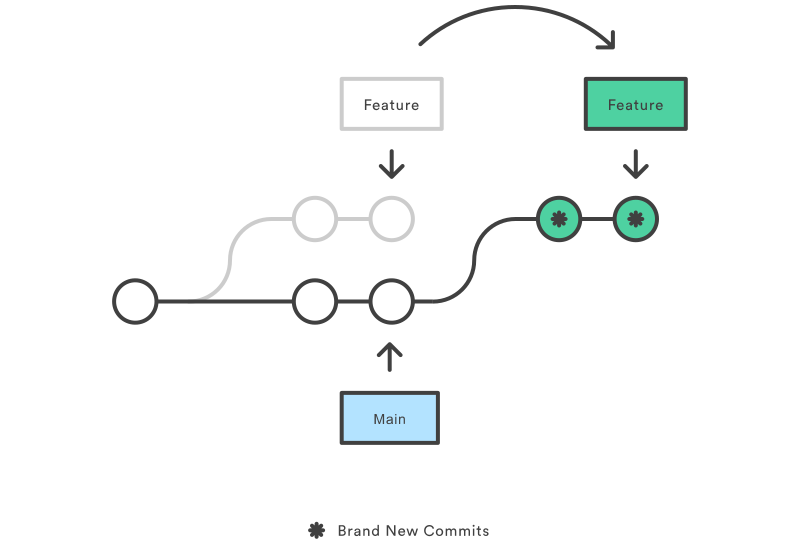
In the above image, the green commits are formed after a rebase
- Rebasing is changing the base of your branch from one commit to another making it appear as if you’d created your branch from a different commit
Rebase the current branch on master
git rebase masterThis will change the commits in such a way that it would appear that your current branch was created off the latestmastercommit
Two modes of git rebase
Manual / Standard
git rebase <baseBranch>- The above command will rebase your current branch onto the
baseBranch baseBranchcan be any type of commit reference:- Branch name, a tag, commit ID, relative reference to
HEAD
- Branch name, a tag, commit ID, relative reference to
- Rebasing means the current branch’s commits will be put on top of the
baseBranch
Interactive mode
git rebase -i <baseBranch>-iflag stands for interactive mode- Instead of blindly moving all of the commits to the new base, interactive rebasing gives you the opportunity to alter individual commits in the process.
- It rebases the current branch onto
baseBranch, but opens an editor where you can enter commands for each commit- These commands determine how individual commits will be transferred to the new base
Rebase commands
drop (d)- Discard the commit from the final combined commit blockpick (p)- Leaves the commit untouched. Will still be an individual commit in the branch’s historyexec (x)- executes a command line script on each marked commitreword (r)- use commit, but edit the commit messagee, edit- use commit, but stop for amendings, squash- use commit, but meld into previous commitf, fixup- like “squash”, but discard this commit’s log message
Things to keep in mind
- Commits modified with a rebase command have a different ID than either of the original commits.
- Commits marked with pick will have a new ID if the previous commits have been rewritten.
Configuration options
The following rebase properties can be set using git config
rebase.stat- False by default. The option toggles display of visual diffstat content that shows what changed since the last rebase.rebase.autoSquash- Boolean. Toggles the--autosquashbehaviourrebase.missingCommitsCheck- Change behaviour around missing commits. Multiple possible values:warn- Prints warning output in interactive mode which warns of removed commitserror- Stops the rebase and prints removed commit warning messagesignore- Set by default this ignores any missing commit warnings
rebase.instructionFormat- Agit logformat string that will be used for formatting interactive rebase display
Additional rebase flags
--continue- Advance the rebase after all conflicts are resolved--abort- Reset the rebase. Cancel the rebase--onto- Using git rebase onto
Are my commits gone when dropped in interactive mode?
No. Using git reflog can help restore those “lost” commits